
How it works
Installed by your admins in about an hour.
No servers, no scripts and no consultants. The hour is spread across your SharePoint, Power Platform and JobsViz admins, and the setup wizard does the technical work for you. Bringing in your existing jobs and documents can take longer, depending on how much you have.
Upload the app
Your Microsoft 365 admin uploads the JobsViz package to the SharePoint app catalog, makes it available to every site, and approves its Microsoft 365 access in the SharePoint admin center.
Add the setup wizard
Add the JobsViz Install web part to the home page of your JobsViz hub site. Fill in the planning workbook first if you like: the wizard starts from your answers and brings in its sheets.
Follow the wizard
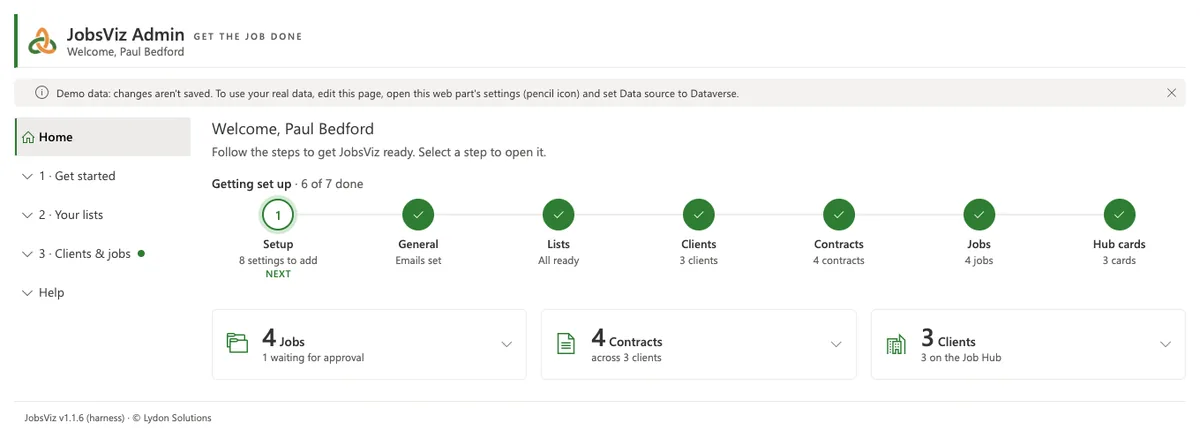
It finds or helps you create your Dataverse environment, installs the data tables, takes your licence key, sets your language and words, site layout (one site, a site per client or a site per job, with or without Teams) and template library, brings in your existing clients, contacts, contracts, jobs and Schedule of Values (with Undo), gives every job its library with a 00 Imported documents folder, copies or uploads old documents, and sets up people, email, optional features and your modules.
Open the Job Hub
At Finish the Job Hub takes the wizard's place on the hub's home page. Close the page part-way and the wizard carries on where you left off; steps that need another admin's rights can be emailed to them, and Admin > Setup shows what's done and opens the wizard at any step.
Things you probably have already
- Microsoft 365 with SharePoint Online (and Teams, if you want Teams sites and channels)
- A Power Platform environment with Dataverse (the wizard lists yours and shows what each holds, or guides you through creating one), and a licence that includes Dataverse for the people who use JobsViz
- A SharePoint or Global administrator for the one-time upload and approval
- Two Microsoft 365 or Entra groups: JobsViz admins, and everyone else who uses it
Not sure about licences? We'll check with you during the demo.
Day to day
Who uses what
Everyone
The Job Hub, to find clients and jobs, open documents, see the calendar, the map and what needs attention, fill in forms and daily reports, and request new jobs.
Project managers
The PM Dashboard for their own jobs and forms, plus changing dates, resolving issues, making forms final and managing who's on their job's site.
Admins and leaders
Admin for lists, settings, sites, access and forms (with the Form Builder); Wizards for new clients, contracts, jobs and forms; Reports for the whole firm.
Business development and estimators
With the Leads and Estimating modules, the JobsViz Leads app for leads and follow-ups, and the JobsViz Estimating app for bids, through to Convert to a job when you win.
Common questions
Do we need to install anything on people's computers?
No. JobsViz runs in SharePoint and Teams in the browser and the Microsoft 365 apps. People who want job files on their computer can use Sync or Add to my OneDrive with the OneDrive app they already have.
What is the planning workbook?
An Excel workbook you download from the setup wizard's first step. Its Plan sheet asks the wizard's questions (hub, language, site layout, template folders, request emails, groups), and its other sheets take your existing clients, contacts, contracts, jobs, Schedule of Values lines and template folders. Upload it and every step starts from your answers; anything left blank is simply asked.
Can we bring in our existing jobs and documents?
Yes. The wizard imports clients, contacts, contracts, jobs and Schedule of Values lines from the workbook or any CSV or Excel file, shows what each row would do before anything is saved, and can undo an import. Every job gets its own library from your template, and old documents are copied from SharePoint, Teams or OneDrive addresses, or uploaded from a folder on your computer, into each job's 00 Imported documents folder. For very large volumes, Microsoft's Migration Manager does the same job.
Does someone in IT have to do every step?
No. A SharePoint administrator uploads and approves the app once, and a Power Platform administrator may need to create the environment. Everything else is done by your JobsViz admin in the wizard. When a step needs rights you don't have, Email these steps to… sends it to the right person, and you carry on.
Can it use our existing SharePoint sites?
Yes. Point a client or job at an existing site and library, or let JobsViz create new ones. You can use one site for everything, a site per client or a site per job.
How do updates work?
We send a new package; your admin uploads it over the old one. If an update brings new data tables, Admin's Setup page offers an Upgrade button. Your data and settings stay as they are.
Does it need anything outside Microsoft 365?
Only if you want maps and weather. Maps use OpenFreeMap and OpenStreetMap, free with nothing to set up. Weather on daily reports uses your own OpenWeather key or our Weather add-on. Both can be switched off, and if your network blocks them, everything else keeps working.
What happens if our licence ends?
JobsViz reminds your admins before it ends. Afterwards there's a grace period, then the apps become read-only: your data stays in your tenant and stays yours.
Can we try it first?
Yes. Start a free 30-day trial and your licence key arrives straight away for your own Microsoft 365, or show you our demo environment.
Ready when you are.
Tell us about your firm and we'll set up a demo or a trial.